Connect Bond to everything else.
Use Bond as an MCP server so Claude Desktop / Cursor / Claude Code can read its context, or let a Bond teammate connect to an external MCP tool. Write-back always lands in your Review Queue.
What it is
Bond supports MCP — the Model Context Protocol — so your workspace can connect with external AI tools and services. MCP is a standard way for AI tools to exchange context and use each other’s tools.
In Bond, MCP works in two directions:
-
1
External clients connect to Bond.
Tools like Claude Desktop or Cursor talk to Bond’s MCP server and read approved workspace context.
-
2
A Bond teammate connects to an external tool.
A teammate inside Bond uses a Command, an MCP stdio server, or an MCP SSE server as its connection.
Bond as an MCP server
Use this when you want an external MCP-compatible client to connect to Bond — Claude Desktop, Cursor, Claude Code, or any MCP client.
Bond exposes workspace tools through a local MCP server. External clients can read approved workspace context and, where supported, submit items back into Bond.
External tools can propose. You approve what becomes memory.
Write tools queue items into the Review Queue. Nothing enters Bond’s project memory automatically.
Where to find it
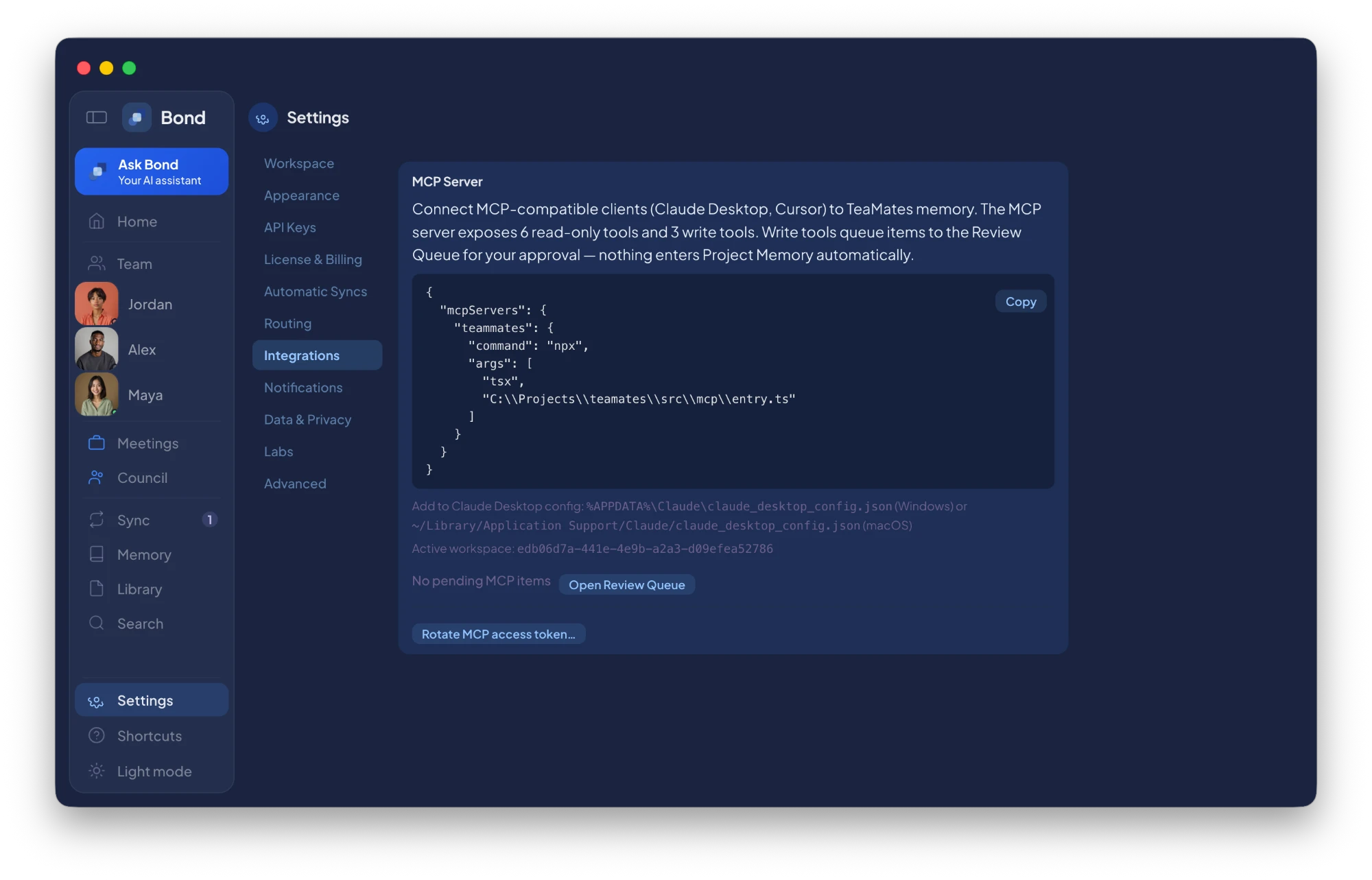
In Bond, open Settings → Integrations → MCP Server. You’ll see a configuration block:
{
  "mcpServers": {
    "teammates": {
      "command": "npx",
      "args": [
        "tsx",
        "C:\\Projects\\teamates\\src\\mcp\\entry.ts"
      ]
    }
  }
}
Copy it into your MCP client’s config file. For Claude Desktop:
macOS:    ~/Library/Application Support/Claude/claude_desktop_config.json
Windows:  %APPDATA%\Claude\claude_desktop_config.json
After saving, restart the external client.
What the external client can do
Read tools retrieve Bond workspace context. Write tools submit proposed updates back into Bond. Write-back is review-gated — proposed items appear in the Review Queue before they become project memory.
Rotate the access token
The MCP Server panel has a token-rotation control. Use it if you shared the config by mistake, no longer trust a client, want to revoke old external access, or are resetting your local MCP setup. After rotating, update the config in any external client that should still connect.
A Bond teammate using MCP
Use this when you want a teammate inside Bond to connect to an external tool or MCP server — Claude Code, a local CLI, a local stdio server, a remote SSE server, or a service like Linear or GitHub through an MCP-compatible connector.
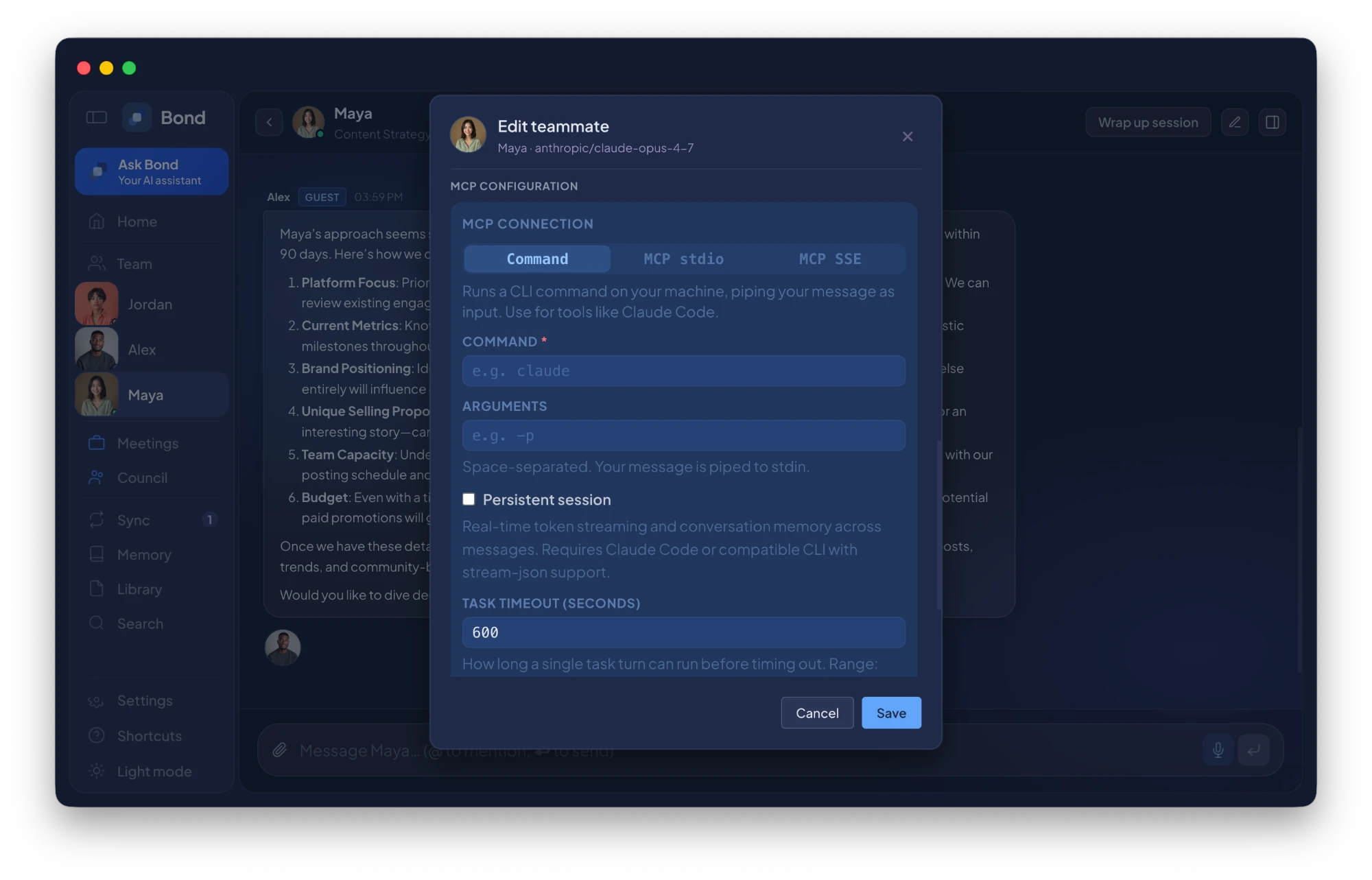
Open a teammate, click Edit, find the MCP Connection section. Bond supports three connection modes:
Command
For local command-line tools that accept input on stdin and return output in the terminal. Useful for Claude Code-style workflows.
Command:    claude
Arguments: -p- Command
- The command to run. Example:
claude - Arguments
- Space-separated arguments. Example:
-p - Persistent session
- Keeps conversation continuity across messages when the tool supports it.
- Task timeout
- How long Bond waits before stopping a long-running tool call.
MCP stdio
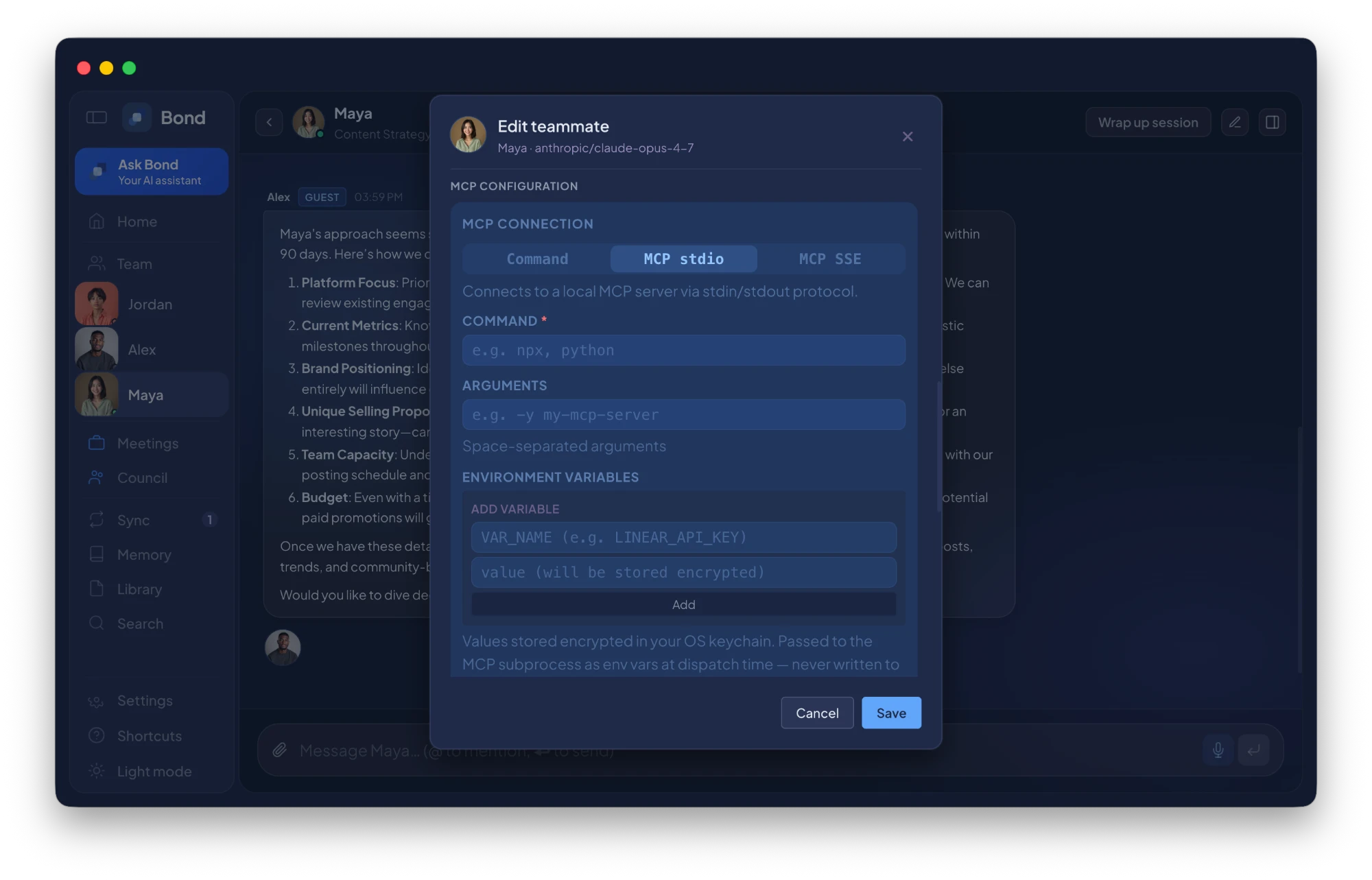
For a local MCP server that communicates over standard input and output. The standard mode for most local MCP servers.
Command:    npx
Arguments: -y my-mcp-server- Command
- The executable that starts the MCP server.
- Arguments
- Space-separated arguments passed to the command.
- Environment variables
- Optional secrets the MCP server needs. Stored encrypted in your OS keychain. Do not put secrets into Workspace Context.
MCP SSE
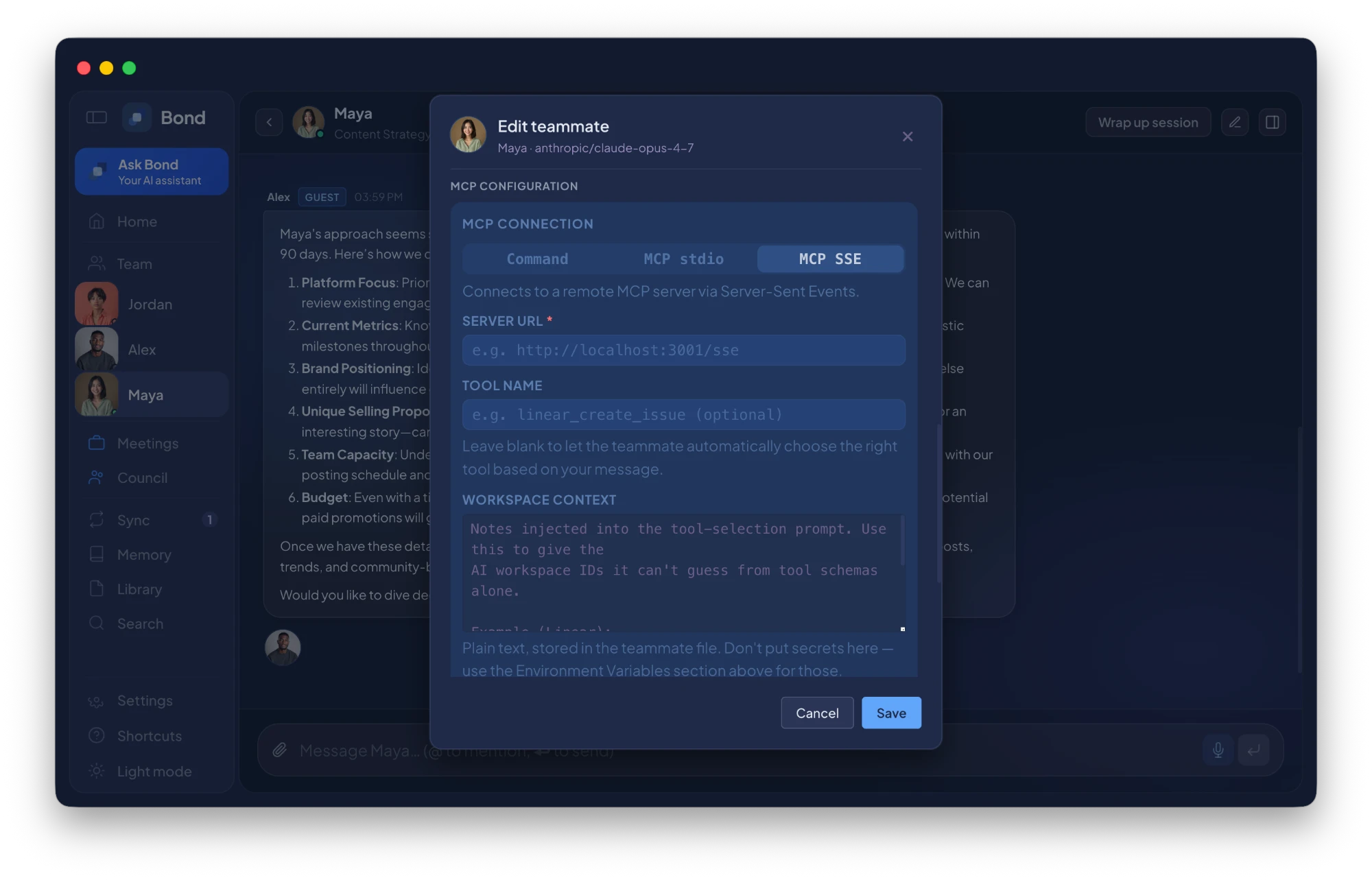
For a remote MCP server over Server-Sent Events. Use this mode only for MCP servers you trust.
Server URL: https://example.com/sse- Server URL
- The SSE endpoint for the remote MCP server.
- Tool name
- Optional. Leave blank if you want the teammate to pick the right tool based on the message.
- Workspace context
- Optional notes injected into the tool-selection prompt — workspace IDs, naming conventions. Never put API keys or credentials here.
Secrets & context
Environment variables
API keys, tokens, anything sensitive an MCP tool needs. For example: LINEAR_API_KEY, GITHUB_TOKEN. Bond stores these encrypted in your OS keychain and passes them to the MCP subprocess at dispatch time — never written into the teammate prompt or workspace context.
Workspace context
Non-secret operational notes the tool needs to choose correctly — workspace IDs, team keys, default project names. Example: Use workspace ID abc123. Use team key ENG. Do not put API keys, tokens, passwords, or any private credentials in Workspace Context.
Review Queue and write-back
If an MCP tool sends something back into Bond, it doesn’t automatically become durable project memory. It lands in the Review Queue. From there you can:
- approve it
- edit it
- reject it
- dismiss it
That’s how Bond keeps MCP useful without giving external tools silent control over your workspace memory.
Which mode should I use?
| Goal | Use |
|---|---|
| Let Claude Desktop or Cursor read Bond context | Settings → Integrations → MCP Server |
| Connect a teammate to a local command-line tool | Teammate MCP → Command |
| Connect a teammate to a local MCP server | Teammate MCP → MCP stdio |
| Connect a teammate to a remote MCP server | Teammate MCP → MCP SSE |
| Store API keys for an MCP tool | Environment Variables |
| Add non-secret routing hints | Workspace Context |
| Review proposed memory or write-back | Review Queue |
Troubleshooting
The external client doesn’t see Bond
- MCP config wasn’t pasted into the correct config file
- External client wasn’t restarted
- Command path is wrong
- Workspace isn’t active in Bond
- Access token was rotated since the config was copied
A teammate can’t connect to an MCP server
- Command doesn’t work in a terminal
- Arguments are wrong
- MCP server isn’t installed
- Required environment variables aren’t configured
- Timeout is too short
- Remote SSE URL isn’t reachable
A write-back didn’t become memory
That’s expected. Open the Review Queue — MCP write-back items wait for your approval before becoming project memory.